Cursor Automations: Triggers, Templates, and No-Repo Agents

Cursor Automations run work while the editor is closed. They are cloud agents that fire on a schedule or in response to an event, follow the instructions you write, and leave a result where you can inspect it.
Repeated review, triage, and reporting become useful automation targets once you decide the permissions, spending, and failure handling before the first schedule runs.
My own Cursor use centres on cloud agents against deployed development environments, so I judge an automation by the branch, run log, and review path it leaves behind. Check your plan before setup: current cloud-agent access starts at Premium, while legacy plans have different entitlements.
Automations are a deeper part of Cursor’s workflow. For the broader product choice, our best AI coding tools guide compares Cursor with the alternatives.
For delegation to a persistent cloud computer rather than an event-triggered job, see the Grok Bot guide.
The Automations Dashboard
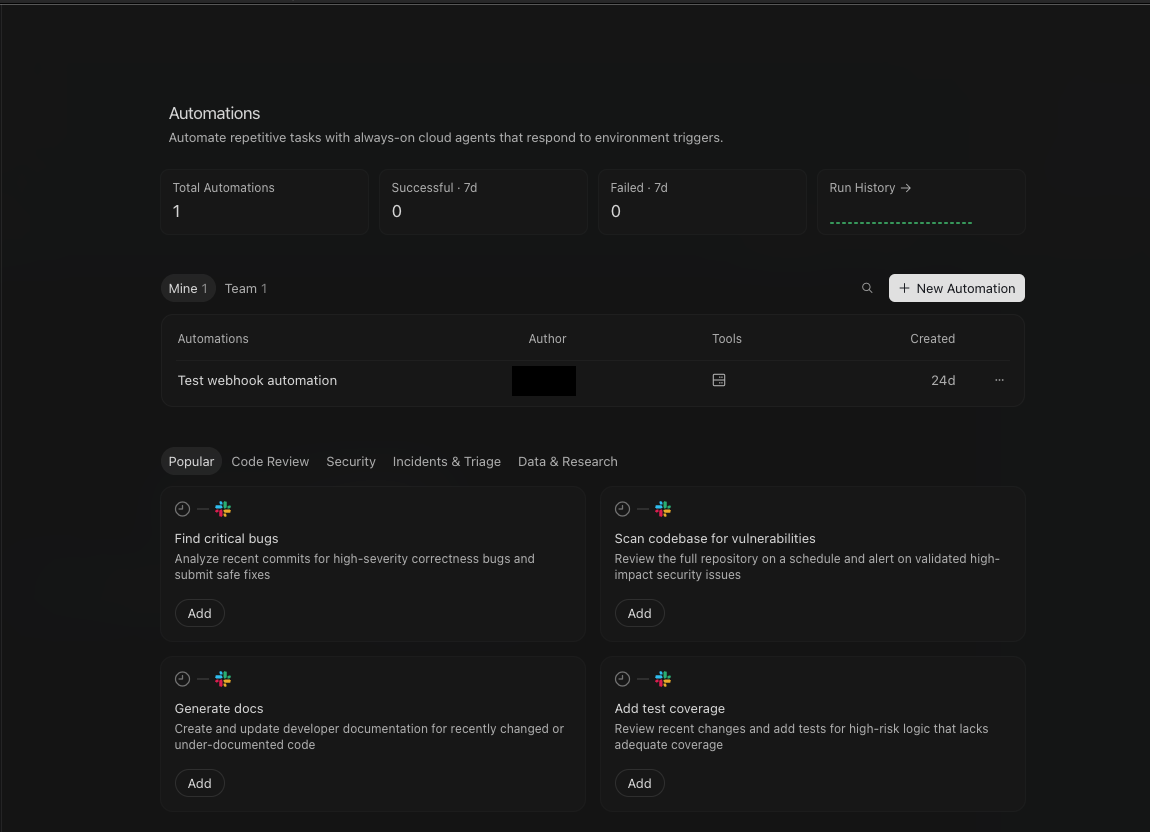
The dashboard is a control room rather than an editor view. The top row tracks total automations, successful and failed runs over the last seven days, and a run-history sparkline. Below that sit your own automations and your team's, and under those a marketplace of templates you can add with one click.
How Do You Create a Cursor Automation?
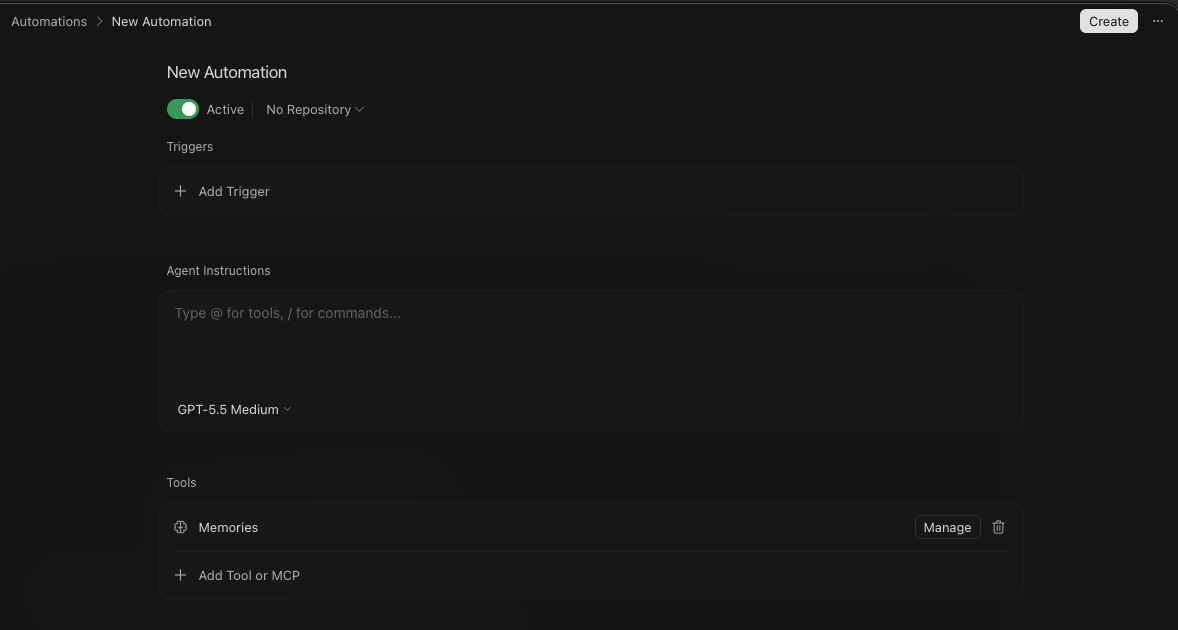
Developers can create a Cursor Automation from the Agents Window or the Automations dashboard, choose a trigger, write the task instructions, and configure repositories and tools. Name it, test a narrow run, and activate the recurring trigger once you have checked the output and cost.
Alongside a single repository or several, the form offers No Repository. That choice changes the whole character of the automation.
With a repo attached, the agent clones your code into a sandbox and works on an agent branch. Repo-backed runs can push that branch and open a pull request by default. A human still reviews the diff and checks before merge.
A no-repo run does not clone a repository or use the built-in repository editing and pull-request workflow. It can still read or change resources through connected tools, including MCP servers, according to their permissions. Use it for a digest or research task, then inspect each connection before treating the run as read-only.
Set the Operating Boundary
Below the scope you write the agent instructions in plain language, with the same @ for tools and / for commands used in the editor. You choose the model from a curated list and attach tools, including Memories by default and any MCP server you connect.
Once saved, the automation waits for its trigger.
Tell the automation what it may and may not do. Name the event it should handle, the information it may use, where to send the result, and the actions it must avoid. "Summarise new production errors in this channel; do not edit a repository or page anyone" is safer and easier to audit than "handle incidents."
Which Events Can Trigger an Automation?
A schedule, repository event, supported app event, or authenticated webhook can start a Cursor Automation. Choose the narrowest trigger that covers the repeated job, then test its filters before enabling frequent runs.
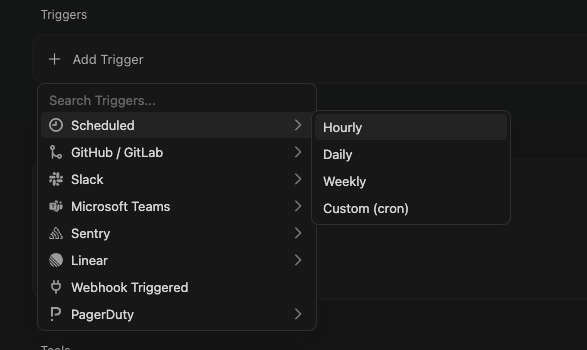
- Scheduled runs on a preset of hourly, daily, or weekly, or on a cron expression you write. Runs can be delayed under load, but they never start before their time.
- GitHub, GitLab, and Bitbucket Cloud support core pull-request and push events. Additional triggers vary by provider: do not assume labels or completed CI runs are available for every host. Fork pull requests are not supported except on merge.
- Slack fires on a new message in a public channel, with optional keyword filters, or on a channel being created. Private channels are not visible to the trigger.
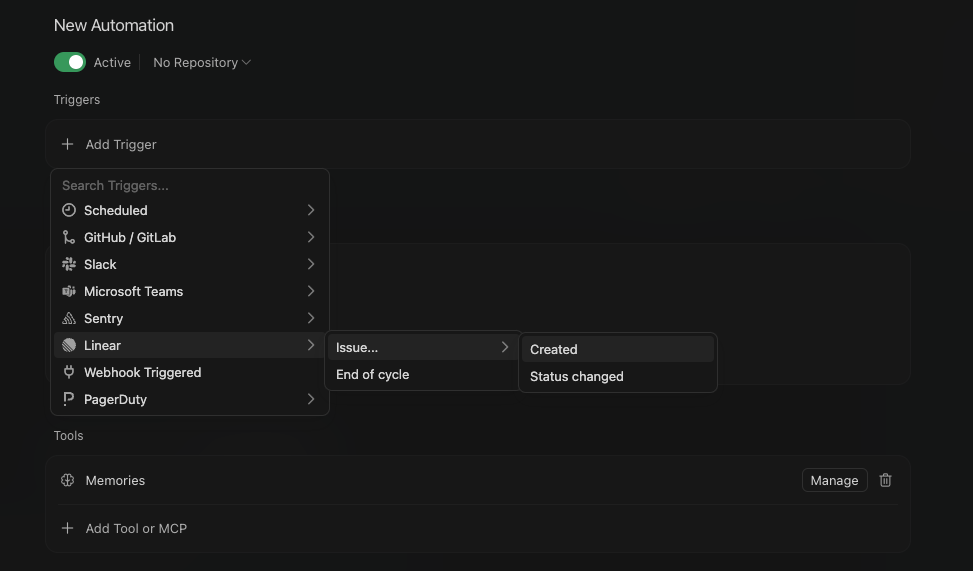
- Linear, Sentry, and PagerDuty cover the issue, error, and incident side: a new Linear issue or status change, a Sentry issue event, a PagerDuty incident raised or resolved.
- Webhook gives the automation a private HTTP endpoint. Save it once to generate the URL and an API key, then anything that can POST can start a run, which is the escape hatch for every tool not in the list.
Design for Duplicates and Failures
Events repeat. A pull request can receive several pushes, an issue can change status twice, and a webhook sender can retry after a timeout. Make the first instruction idempotent where possible: ask the automation to update one named comment, label an item only when the label is absent, or report a duplicate instead of opening another ticket.
Also decide where a failed run becomes visible. A weekly report that silently fails is worse than no report because people assume it happened. Send a failure notice to the same channel that receives the successful output, and include the run link or identifier needed to inspect the cause.
What Can an Automation Produce?
A Cursor Automation can return a report, send a message, comment on a pull request, or propose code changes, depending on its repositories and enabled tools. Configure the destination explicitly so the result reaches a person who can use it.
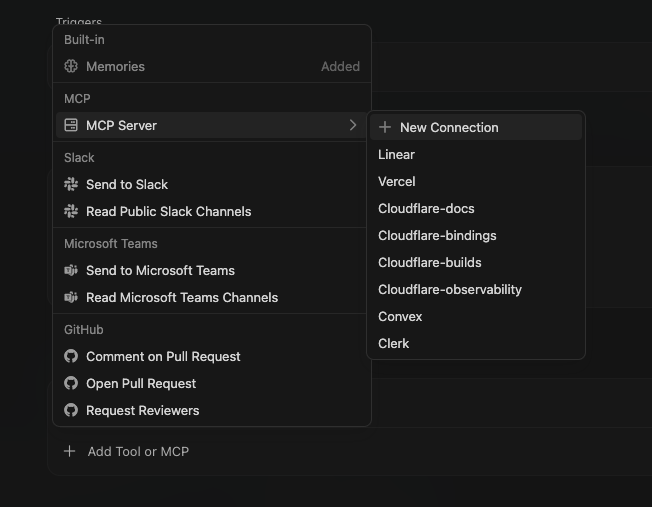
The native actions cover common handoffs: send a Slack or Teams message, read a channel, and comment on a GitHub pull request, open one, or request reviewers. Everything else rides on MCP, with built-in choices for services such as Linear, Vercel, Cloudflare, Convex, and Clerk.
Memories can carry context between runs. Repo-backed runs work on agent branches and can push or open pull requests by default, so branch protection and human review remain the merge boundary.
Templates
The marketplace ships ready-made automations grouped by job. Dashboard categories cover code review, security, incident triage, and data research. Named starters include finding critical bugs, scanning for vulnerabilities, generating docs, and adding test coverage.
The no-repo additions from May include a Slack digest that summarises morning messages by priority and an analytics agent that pulls weekly metrics. Add one, read its instructions, and tune it to your stack before enabling it.
Automated Code Review
The review and security templates are a practical place to start because the event, output, and reviewer are clear. A pull-request trigger can leave a non-blocking comment before anyone decides whether the findings are useful enough to become a team gate.

BugBot is the turnkey review path, while an automation is the build-it-yourself path. Point an automation at pull-request opened and pushed, give it narrow review instructions, and let it return a comment or report. You control what it checks and where results go; the trade-off is that you also own calibration, permissions, and noise.
Start with one repeated concern that a general reviewer does not cover, such as checking a release note, a documentation change, or a project-specific convention. Keep findings advisory until a sample of real pull requests shows that the agent has a useful signal. The deeper setup for review tooling lives in the AI code review guide.
How Is Automation Usage Billed?
Cursor Automations consume cloud-agent usage. A run configured as Me charges your usage; a Service account uses the team pool and requires an administrator to configure it. Treat every recurring trigger as a budgeted system. Cursor's current pricing page lists included usage and on-demand billing terms; the rate can differ by plan, model, and workspace settings.
Set a spending limit before enabling cloud agents and inspect the Automations documentation before scaling a schedule. Billing ownership, token rates, trial discounts, and included usage can change; date any internal budget decision to the plan page you checked.
Limits and Gotchas
- Runs use the maximum supported context window, without a context-size toggle. Set a cap and watch the first week.
- Scheduled runs can lag under load. They will not run early, but do not build a hard real-time dependency on the second.
- Fork pull requests are unsupported except on merge, and only public Slack channels are visible to Slack triggers.
- No Repository removes the built-in code workflow. MCP and other connected tools may still read or write external resources; their permissions need a separate review.
- Repo runs use agent branches. They can push and open pull requests by default; branch protection and human review still decide what merges.
Keep the first production version deliberately dull. One trigger, one source, one destination, one owner, and one written stop condition are enough. Add MCP connections, external writes, and parallel schedules only after the simple run has produced reliable evidence for several cycles.
When Automation Earns Trust
Cursor Automations are most valuable for small, repeatable jobs with a visible owner and output: a pull-request check, scheduled report, incident summary, or issue triage step. Begin with reporting and strict limits, then allow more actions only after checking how it performs. Keep human review responsible for the merge while the automation reduces a specific queue of work.
FAQ
What do Automations cost?
Cursor Automations are billed through cloud-agent usage rather than a single fixed price per automation. The exact rate, included amount, and overage policy can change, so check Cursor's current pricing page before you turn on a recurring trigger. Set a limit first, then measure a bounded trial before relying on an automation every day.
Do I need a repo?
Cursor Automations do not require a repository for tasks such as digests, alerts, or research; select No Repository for those tasks. That disables repository cloning and the built-in code-editing and pull-request workflow, but connected tools may still access external resources. No Repository does not make every tool read-only.
Can they review PRs?
Cursor Automations can review pull requests when a pull-request trigger and the required GitHub actions are configured. Start with one repository and a non-blocking comment workflow, then inspect false positives, missed issues, run cost, and permissions before treating the output as a required gate.
How should I test an automation?
Developers should test a Cursor Automation with a manual trigger or a narrow event on a disposable branch. Give it read-only instructions or a reporting task, check the run log and output location, then add a single write action if the result is reliable. Test failure, duplicate-event, and permission paths before scheduling it.
Related
- Cursor guide for the editor and pricing it all sits on.
- Best AI code review tools for BugBot and the wider review landscape.
- Cursor vs OpenCode for how the cloud-agent and automation story compares with the open-source side.
Sources
-
[1]
Cursor pricing(cursor.com)
-
[2]
Cursor Automations docs(cursor.com)
-
[3]
Introducing Automations(cursor.com)
-
[4]
Cloud Agents(cursor.com)
-
[5]
Automations changelog (March 5, 2026)(cursor.com)
-
[6]
Improvements to Automations (May 20, 2026)(cursor.com)
-
[7]
Account and usage pricing(cursor.com)
-
[8]
BugBot(cursor.com)
-
[9]
Improvements to Cursor Automations(cursor.com)
-
[10]
Automate Work with Routines(code.claude.com)
Read Next
How to control what Cursor's AI sees: the @ symbols for pulling in files, folders, docs, and the web, plus .cursor/rules/*.mdc files that teach Cursor your conventions once so you stop repeating yourself.
Beginner-friendly guide to Cursor, the AI code editor now part of SpaceX: its VS Code roots, Tab and Agent workflows, cloud agents, Grok Bot, diffs, models, pricing, and limits.
Bugbot review: what Cursor’s reviewer catches, how BUGBOT.md rules work, usage pricing, autofix and where human judgement still matters.