Complete Guide to Cursor (2026)

Cursor is an AI code editor built from VS Code's open-source foundation. It combines code completion, project questions, file editing, and agents that can run development commands. You can inspect the files and changes in the same workspace where you write code.
We rank Cursor second, behind Claude Code, in our AI coding tools comparison, with Grok Bot adding a separate option for delegated work. This guide explains the editor, its limits, and a first task you can check yourself. Your choice still depends on the extensions, model access, and billing your project needs.
| Your Requirement | Cursor's Fit |
|---|---|
| Visual editing and review | Files, AI chat, and diffs together |
| Existing VS Code workflow | Familiar layout; verify required extensions |
| Delegated background work | Cloud agents and eligible Grok Bot access |
| Hosting and database included | Separate project services still needed |
What Is Cursor?
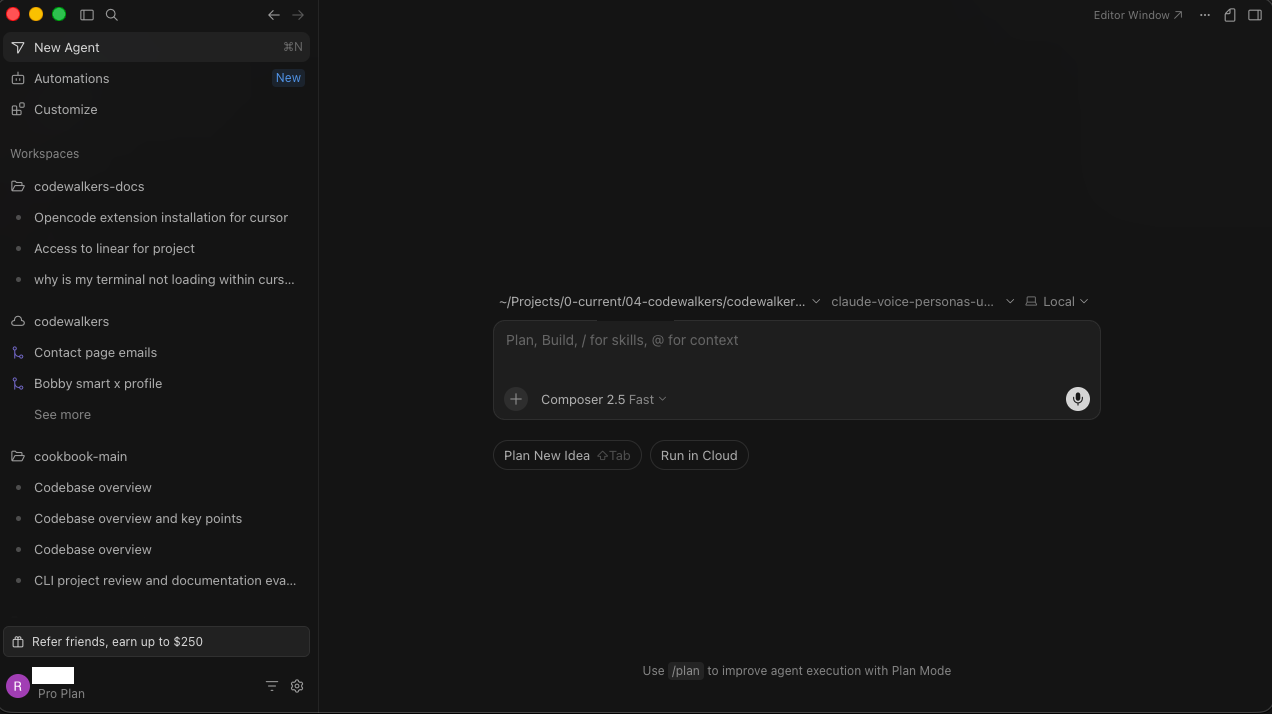
Cursor is a standalone code editor with integrated AI assistance, so it can replace VS Code for many workflows. It opens a repository, often shortened to repo, which is a project folder containing code, supporting files, and the recorded history of changes.
The editor keeps ordinary programming tools around the AI. You can browse files, search text, open a terminal, review the project's recorded changes, install extensions, and pause a running program to inspect an error. The AI tools can see the code surrounding your task and can propose edits inside the same window.
A terminal is a text-based window for typing commands. Cursor includes one because many projects use commands to start the app, run tests, or create a release. Agent Mode can run those commands for you. A beginner should keep the setting that asks for approval before each command until those commands are familiar.
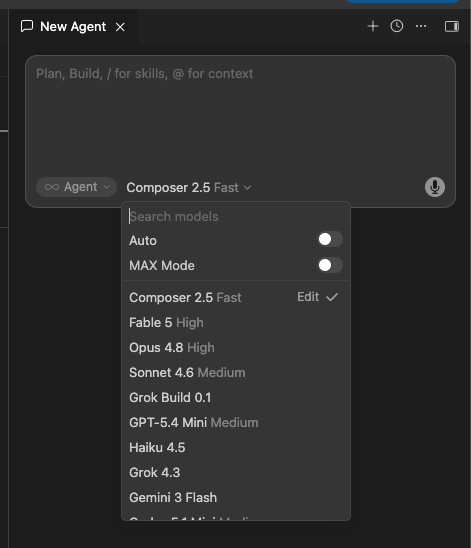
Cursor also offers access to several AI model families. A model is the underlying AI system that reads the request and produces the response. Cursor provides access to its own models and models from other companies, while the plan and current account determine which choices appear.
What Can Cursor Do?
Cursor can suggest code, explain selected code, edit project files, run development commands, and delegate tasks to cloud agents. Tab helps with the next edit you are making. Chat and inline edit help with one question or selected area. Agent coordinates work across files and can run commands, while cloud agents run a handed-off task on remote infrastructure. Composer is also the name of Cursor's coding-model family; a model supplies reasoning within the agent workflow.
| Tool | Job Size | What You Review |
|---|---|---|
| Tab | Next edit | Suggested text |
| Inline edit | Selected area | Focused diff |
| Chat | Question or explanation | Answer and cited files |
| Agent | Multi-step task | Files and command output |
| Cloud agent | Remote handoff | Result and artifacts |
Tab Completion
Tab completion predicts an edit while you type. It may finish a line, add several related lines, or suggest the same rename in the next likely place. Press Tab to accept the suggestion and Escape to dismiss it.
This is Cursor's lightest form of help because you remain in control of the file and see the suggestion where it will land. It is useful for repetitive work and familiar patterns. Read the whole proposed block when the suggestion crosses several lines.
Chat and Inline Edit
Chat answers questions about the project and can use the selected code as context. Context means the information the model can see while answering, such as the current file, selected lines, or other files you explicitly include.
Inline edit changes a selected section of code. On macOS, Cmd+K opens that flow; Windows uses
Ctrl+K. Select the smallest area that owns the change, state the outcome, and inspect the
focused diff.
Agent
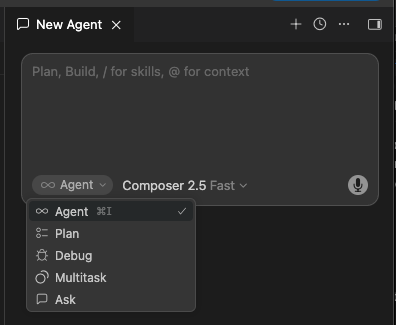
Cursor Agent searches the project, edits files, and can run commands, then uses the results to continue the task. Composer 2.5 is a coding model that can power this workflow. Older tutorials also use Composer for a multi-file editing interface, so check which meaning a tutorial intends. The name agent describes software that can take a sequence of actions toward a goal instead of returning a single answer.
Start in Ask or Plan when you need an explanation first. Move to Agent only after the task, project area, and expected check are clear. Keep command approval enabled while you are learning what the project runs and which commands can affect data.
Cloud Agents
A cloud agent runs on a remote computer managed by Cursor. It receives a repository and a task, prepares an environment, works through the request, and returns a result for review. Your laptop does not need to carry the whole job.
Cursor's cloud-agent engineering notes explain that remote agents create extra work around environment setup, reliability, and orchestration. In plain language, the cloud computer must be taught how to install and run your project before the agent can produce a trustworthy result.
Cloud agents suit longer, clearly bounded work that can proceed without constant questions. They are a poor first choice for a project that only runs on your laptop or a task whose expected result is still unclear. Begin locally, then move a repeatable job to the cloud.
Cursor Projects adds a coordinator for work that spans several agent tasks or pull requests, such as a migration or an ongoing maintenance job. It is rolling out in beta, so check availability in your account before planning around it.
Getting Started
Start with one project you already understand. A small personal site, a class exercise, or a copy of a simple app is better than an unfamiliar live business project. You need enough context to recognise when Cursor found the right file and when its suggestion has wandered.
This local walkthrough requires project files on your computer. If your site exists only inside Shopify, WordPress.com, or another hosted service, use that service's export or repository instructions before continuing. Without a safe local copy, use that hosted service's own editing tools instead.
Install Without Removing VS Code
- Download Cursor from cursor.com and run the installer.
- Choose the setup option to import your VS Code settings if you already use VS Code.
- Keep VS Code installed while you test the extensions that matter to your work.
- Sign in to Cursor and begin on the current Free plan unless you already need a paid feature.
Imported settings can include keybindings, snippets, themes, and extensions. A keybinding connects a keyboard shortcut to an action. A snippet is a saved piece of text or code that the editor can insert for you.
Cursor uses VS Code's open-source core, although some Microsoft proprietary extensions can be exceptions. Keep the old editor until you have opened the debugger, remote-access tools, and sign-in extensions your project depends on. Your project files remain ordinary files either way.
Open a Project You Know
- Duplicate the project folder with Finder on macOS or File Explorer on Windows so your first trial uses a copy.
- In Cursor, choose File, then Open Folder, and select that copied folder.
- Open the Agent side panel with
Ctrl+I, as shown in Cursor's official quickstart. - Select Ask mode and type: "Explain what this project does and tell me how to run it. Do not edit files or run commands."
- Compare the answer with any README file (the project's own introduction document), course instructions, or notes supplied with the project.
If you still do not know how to run the project, pause before requesting an edit. Ask the person or service that supplied the files for the correct start instructions. The unchanged running project is your baseline, meaning the known state you will compare with Cursor's result.
Try One Visible Change
Give Cursor one task with an obvious result: "Change the home-page heading from Welcome to My Portfolio." Ask it to show the proposed change before applying anything else. This keeps the trial focused on finding one file and producing one visible result.
- Keep the Agent side panel open and switch from Ask to Agent.
- Type the exact visible result you want, then ask Cursor to show the proposed change.
- Read the proposed diff before accepting it.
- Run the project with the confirmed instructions and check the visible result.
- Reject any unrelated file or package change.
A diff is the before-and-after view of changed text. Added and removed lines are marked so you can see what the AI proposes. The diff is more reliable than a summary because it shows the change that will reach the files.
How I Use Cursor
I point Cursor's cloud agents at auto-deployed development environments, where the editor matters less than the handoff between a prompt, a running site, and the finished diff. I pair Cursor with Claude Code when a task needs a second plan or a separate review.
A development environment is a working version of a project used before a public release. A deployment copies a version to a server where it can run. My setup is more advanced than a beginner needs, but the review principle is the same: check both the code change and the visible result.
Grok Bot
Grok Bot is a separate app for delegating work to bots that share a persistent cloud Linux computer assigned to your account. It adds delegated work beyond Cursor’s editor, which sits second in our ranking. Files and installed tools can remain between tasks, allowing a bot to resume a longer job.
For new subscriptions, Grok Bot is included from Premium upward; the lower paid Plus tier does not include it. Existing legacy subscriptions have their own eligibility and usage rules. Check the current feature table before assuming any paid Cursor plan includes the same bundle.
The cloud browser is separate from your computer's browser. Grok Bot can also request local command and file access, governed by its local-computer approval policy, which defaults to asking every time. Your bots share their cloud machine; creating another bot does not give it a separate security boundary.
I still like pairing delegated cloud work with Claude Code or Codex for local work. The useful distinction is where a task needs to run and how you will review it. Our Grok Bot guide covers that handoff in detail.
How Do Diffs and Command Approvals Differ?
A diff shows file changes; command approval controls whether an agent may execute an action. Review both because a command can affect services or data beyond the files shown in the diff. A multi-file change appears as a list of affected files with additions and removals. Review the file list first because an unexpected file often reveals scope drift (the agent wandering beyond the job you asked for) before you read every line.
Scope drift happens when the agent expands beyond the requested job. A small form fix may turn into a package update or a broad refactor (a rewrite of working code to change its structure). Reject the extra change and start a fresh, narrower session when the agent keeps pulling unrelated work into the diff.
Command approval is separate from file review. A command can run tests, start the project, install a package, or alter stored data. Read the command and its purpose before approving it, especially when it contains words such as delete, migrate, reset, deploy, or install.
Cursor earns trust one reviewed diff and one verified result at a time.
Which Models Can You Use in Cursor?
Cursor supports its own models and selected third-party models, with access determined by your plan and account. The model interprets your request; Cursor supplies the editor, project context, tools, and review interface. Choosing a model does not change a cloud task into local model processing.
Current Free and Plus plans exclude third-party models. Plus includes Composer 2.5 as well as Grok models. Premium and higher plans offer eligible third-party models with separate usage billing. Check the model and pricing documentation alongside the picker in your account.
OpenAI has announced a proposed November 12, 2026 shutoff for its model-supply contract with Cursor and says it is withholding future models under that arrangement. If those models are a requirement, verify the access route before choosing Cursor for the team.
Keep your first model comparison small and repeatable. Run the same known task with the default model, then change only the model and repeat. Compare the changed files, test result, time, and usage so you know which part of the setup produced the difference.
How Much Does Cursor Cost?
Cursor's current individual plans cost US$0 for Free, $8 for Plus, $30 for Premium, $100 for Super, and $200 for Ultra per month, before applicable taxes or fees. Premium is the first new plan that includes Grok Bot, cloud agents, automations, and third-party model access. Third-party usage is billed separately from the subscription.
| Plan | Monthly Price | Main Distinction |
|---|---|---|
| Free | US$0 | Limited Grok usage |
| Plus | US$8 | Grok and Composer; no Grok Bot |
| Premium | US$30 | Bot and cloud workflows |
| Super | US$100 | Larger included usage pool |
| Ultra | US$200 | Highest individual usage tier |
| Teams | US$30–200/user | Seat tiers and administration |
| Enterprise | Custom | Contracted organization requirements |
The public pricing page describes new subscriptions. The documentation also retains legacy Hobby, Pro, Pro+, and Ultra plans. Likewise, the team documentation distinguishes new Premium, Super, and Ultra seats from legacy Standard and Premium seats. Compare the plan your account actually holds.
My first Cursor bill surprise came from leaving agent work on premium models and checking the usage dashboard a few days later: $60 gone. The work was useful, and I could not see the accumulating cost during the flow. That experience is why I set spending limits before enabling extra usage.
New subscriptions and legacy plans meter usage differently. Check the included pool, separate third-party balance, and any automatic top-up or on-demand setting. A higher subscription does not turn separately billed model use into unlimited included work.
My take: start free and pay when the visual workflow saves time on a project you understand, or when a specific paid capability earns its place. Buy a larger allowance after measuring the work you can finish and review. Vague tasks stay vague with a larger allowance.
What Are Cursor's Main Strengths?
Cursor's main advantage is continuity across the whole workspace. The file, AI conversation, diff, terminal, and running project can stay in one window. That reduces the work of copying code between a browser chatbot and an editor, and it makes the proposed change visible beside the surrounding project.
Tab completion remains useful because it meets you at the smallest possible unit of work. You can ignore a weak suggestion without opening a conversation. When a repeated edit is obvious, one accepted suggestion can remove several minutes of mechanical typing.
Cursor Agent is strongest on bounded changes that cross files. It can update a component and its test together, or trace a renamed value through related code. The visual file list makes that coordination easier to inspect than a long stream of terminal output.
The VS Code lineage also matters for adoption. A developer can keep familiar themes, shortcuts, and many extensions while learning the AI layer in stages. That is a smaller move than learning a new editor and a new agent workflow on the same day.
What Are Cursor's Main Limitations?
Cursor can produce a large amount of plausible code before you notice that it misunderstood the task. Agent speed makes review more important because a wrong assumption can spread across several files. Keep the task bounded and stop when the changed-file list grows beyond the expected area.
For a read-only investigation, select an appropriate mode and state "do not edit files or run commands." Verify the active permissions and changed-file list before continuing. Instructions express your intent; permission settings determine which actions the agent can take without another approval.
Large repositories can also exceed the context selected for a session. Cursor may find a nearby pattern and miss a rule stored elsewhere. Use the context and rules guide after the basic workflow feels normal, and start a fresh session when the agent repeats a mistake.
Cursor is a weaker fit for someone who needs a platform to supply the hosting, database, and deployment as part of the same beginner experience. It edits project files well, but the editor does not remove the need to understand how the project runs and where it will be published.
Teams should test required extensions and account controls before replacing VS Code. The shared visual foundation does not guarantee that every proprietary Microsoft extension or organization policy will carry over. A one-project trial exposes those gaps without forcing the whole team to move.
How Cursor Got Here
Anysphere was founded in 2022 by Michael Truell, Sualeh Asif, Arvid Lunnemark, and Aman Sanger, who met at MIT. In October 2023, TechCrunch described Cursor as the company's AI-native development environment and a fork of VS Code. Building on that open-source foundation gave developers a familiar editor while Anysphere added its own AI tools.
Cursor's February 2026 account of its progression describes the move from Tab completion to interactive agents and then cloud agents. That progression explains why the editor supports both small suggestions and longer delegated tasks.
Compare Cursor
The AI coding tools comparisons place Cursor beside the main alternatives:
- Cursor vs Claude Code compares their editing, investigation, and review workflows.
- Cursor vs GitHub Copilot compares two editor assistants and their pricing.
- Cursor vs OpenCode compares commercial polish with an open-source agent.
- Cursor vs Codex compares visual editing and delegated work across their local and cloud options.
The Verdict
Cursor is our number-two AI coding tool, behind Claude Code. The editor half of that verdict is unchanged: AI woven into a familiar VS Code-style workspace, visual diffs worth reviewing, and a Tab-to-Agent learning path a beginner can climb. What keeps it close to the top is Grok Bot arriving on the eligible plans: the bundle covers the editor you work in and agents for work you can delegate. Included usage is limited, and third-party model charges need their own budget. It even won over Mark Gates, who spent the year arguing for local models. He stays local-first, but Grok Bot's VM runs Linux, so he uses it as an isolated sandbox for OpenCode agents, off his own computer.
Begin on the current Free plan with one known project, learn Tab before Agent, and pay for a paid tier when the workflow saves measurable time, then treat Grok Bot as the second half of the product. Its limits decide the rest of your stack: no browser on your own machine and a capped weekly allowance mean you still want Claude Code (our number one) or Codex (a close third) beside it for computer use and local control. A hosted building platform remains the better pick only when you need the database and deployment supplied for you.
FAQ
Is Cursor a version of VS Code?
Cursor is a separate editor from Anysphere that is built from VS Code's open-source foundation. The familiar file tree, shortcuts, themes, and extension support make the move easier, while Cursor adds its own AI tools throughout the editor.
Can a complete beginner use Cursor?
Complete beginners can use Cursor, but they still need to work with project files and understand whether a change is correct. Start with a small project you can run, use one visible task, and read the diff before accepting it. A hosted no-code platform may be easier if you also need hosting, a database, and deployment supplied for you.
What is the difference between Tab and Agent?
Cursor Tab predicts the next edit while you type and waits for you to accept it. Agent takes a written task, finds relevant files, proposes changes across the project, and can run commands. Tab feels like faster typing, while Agent feels like handing over a bounded job.
How much does Cursor cost?
Cursor's new individual plans are Free at US$0, Plus at $8, Premium at $30, Super at $100, and Ultra at $200 per month, before applicable taxes or fees. Grok Bot starts with Premium; third-party model usage is billed separately. Existing legacy plans have different allowances and billing, so check the plan attached to your account.
Does Cursor work with VS Code extensions?
Cursor can import VS Code settings, keybindings, snippets, themes, and many extensions because it is built on VS Code's open-source core. Some Microsoft proprietary extensions can be exceptions, so keep VS Code installed until you test the extensions that your work depends on.
What are Cursor cloud agents?
Cursor cloud agents run a coding task on remote computers managed by Cursor instead of using your laptop for the whole job. You hand off a task, the agent works in its own environment, and you return to review the result, logs, or preview. They suit longer jobs that can proceed with occasional check-ins.
What is Grok Bot and do I get it with Cursor?
Grok Bot gives you AI teammates that work on a persistent cloud Linux computer, assigned per user and shared between your bots, where they can sign in to tools and finish longer jobs. For new Cursor subscriptions, access starts with Premium; legacy eligibility differs. Its cloud browser is separate from your own browser, and local command access follows a separate approval policy. Check the included usage before relying on it for recurring work.
Going Deeper
The Cursor workflows guide covers the longer daily routine and VS Code migration. The context and rules guide explains how to point Cursor at relevant files and store project instructions.
Cursor can also run scheduled or triggered work. The Cursor Automations guide owns that advanced topic. Finish several supervised Agent tasks before creating an automation, because a repeated unclear task only repeats the confusion faster.
The Grok Bot guide covers handing a bounded job to a persistent cloud computer while Tab, Agent, and your local files stay in Cursor. The Origin guide covers Cursor-hosted repos, pull requests, and when GitHub remains the remote.
Pricing, model terminology, and Grok Bot access were checked against official sources on October 16, 2026. Historical examples and screenshots retain their stated dates.
Sources
-
[1]
Grok Bot approvals, security, and privacy(docs.x.ai)
-
[2]
Composer 2.5 model(cursor.com)
-
[3]
Grok Bot(x.ai)
-
[4]
Grok Bot plans(cursor.com)
-
[5]
Cursor Projects(cursor.com)
-
[6]
Cursor team pricing(cursor.com)
-
[7]
Introducing Grok 4.5(cursor.com)
-
[8]
Grok 4.5 pricing (Cursor models and pricing)(cursor.com)
-
[9]
Composer 2.5(cursor.com)
-
[10]
Cursor 3.4 changelog(cursor.com)
-
[11]
Cursor models documentation(cursor.com)
-
[12]
Cursor rules documentation(cursor.com)
-
[13]
Cursor models and pricing documentation(docs.cursor.com)
-
[14]
Cursor pricing(cursor.com)
-
[15]
Cursor pricing policy(cursor.com)
-
[16]
Cursor 3.0 changelog(cursor.com)
-
[17]
Cursor keyboard shortcuts reference(cursor.com)
-
[18]
Cursor rules and customization(cursor.com)
-
[19]
Plan mode autonomously switching to Agent mode (Cursor forum)(forum.cursor.com)
-
[20]
Cursor Tab completion and agent discussion (Hacker News, April 2026)(news.ycombinator.com)
-
[21]
Anysphere raises $8M to build an AI-powered IDE(techcrunch.com)
-
[22]
The third era of AI software development(cursor.com)
-
[23]
What we have learned building cloud agents(cursor.com)
-
[24]
Cursor quickstart(docs.cursor.com)
-
[25]
Introducing Grok 4.5(x.ai)
Read Next
Grok Bot is a separate desktop and mobile app from Cursor and xAI together, included with paid Cursor and SuperGrok plans. What it does and how it fits with coding agents.
What Cursor Origin hosted codebases are: review and ship from a Cursor-hosted repo, and how GitHub still shows up when a team keeps that remote.
How Cursor Automations work in 2026: always-on cloud agents that run on a schedule or a trigger, with webhooks, no-repo monitors, Slack and GitHub actions, the template marketplace, what they cost, and how to wire one up for automated code review.
Beginner-friendly guide to Claude Code: its history, no-terminal Desktop setup, permissions, diffs, CLI, models, pricing, code review, and ecosystem.